Set up Google Analytics 4
Create a Google Analytics 4 property
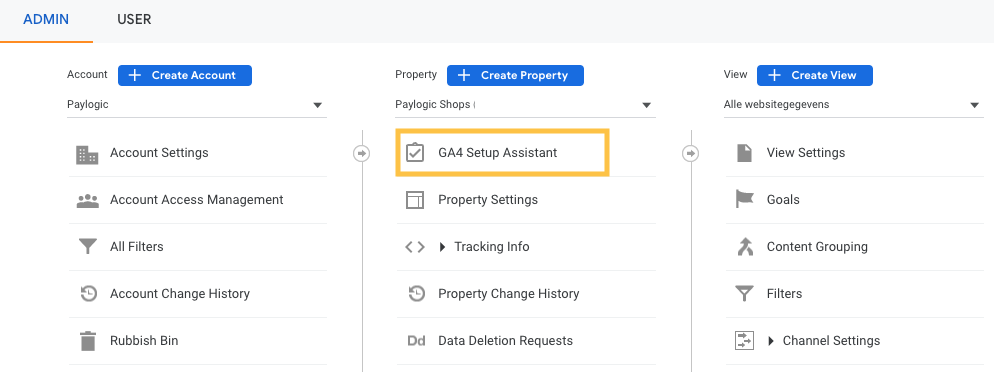
- If you already have a Universal Analytics property, you will notice a GA4 Setup Assistant in the admin section of that property.
This will initiate an assistant to help you create a new Google Analytics 4 property. Note: this GA4 Setup Assistant option will not affect your existing Universal Analytics property. It will just initiate the creation of the new property and will allow you to reuse some of the Universal Analytics property’s settings (but not all of them + some additional terms may apply).
 Once you click GA4 Setup Assistant, you will be asked to either create a new GA4 property or connect to the existing one. Select the ‘Create new property’ option.
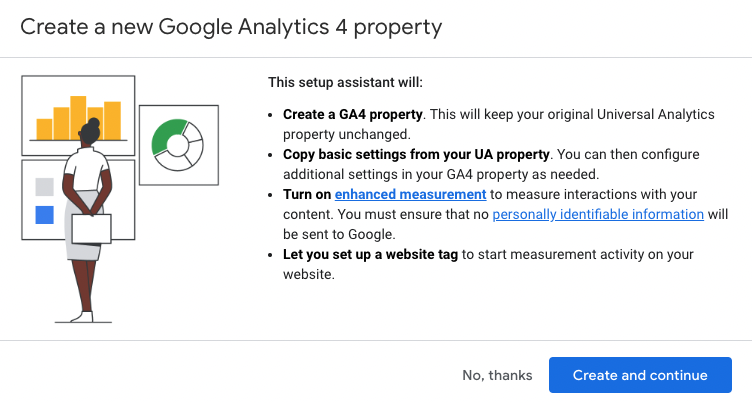
After that, you will see a popup describing what is going to happen:
A new property will be created
Some of the basics settings from Universal Analytics will be reused (for example, property name)
You can enable Enhanced Measurement
Click ‘Create and continue’
You land in the setup flow for a Google tag. Click ‘Done’ in the topright corner
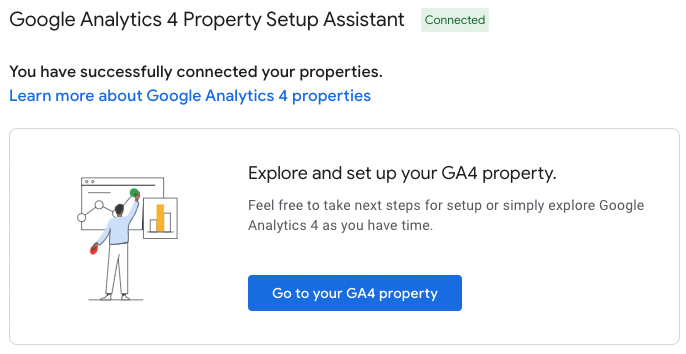
You’ve now successfully created your GA4 property. Click ‘Go to your GA4 property’.
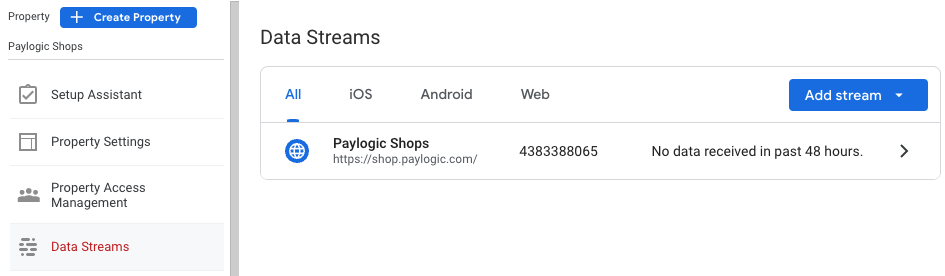
Select ‘Data Streams’ in the menu on the left and click on the data stream that’s shown (it was automatically created when you Upgraded from Universal Analytics property).
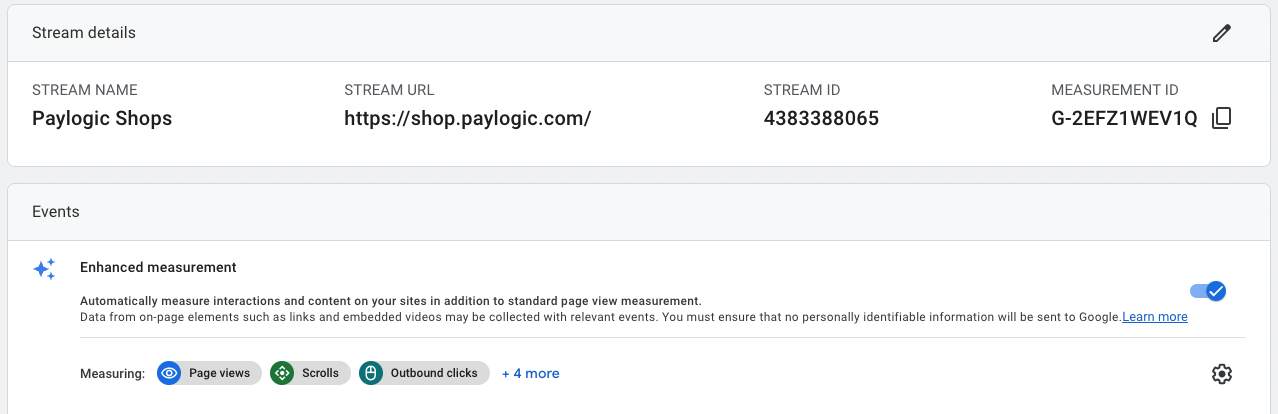
Then you will see a window like below. At the top-right corner, you will see the Measurement ID of your new property. Copy it.

Configure Google Analytics 4 in Paylogic backoffice
- Go to the event which you want to track with Google Analytics 4 and go to the Marketing Tags menu.
Select the Google Analytics 4 tag
In the ‘Google Analytics Measurement ID’ field you fill in the Measurement ID you copied from your Google Analytics 4 set up.
You’re now finished with the setup! You will now automatically track the following events in Paylogic Shops with your Google Analytics 4 property:
Page view
Purchase
Add to cart
Remove from cart