Promote ticket resale from the ticket shop
Introduction
When fans are not able to attend an event, there are various players in the market that enable resale.
In these articles (1. Waiting list | 2. Resale platform) you can already read which options See Tickets offers to take back control over this.
Below you can read how resale options for sold-out ticket types can be highlighted directly in the ticket shop.
Showing resale tickets in the primary ticket shop
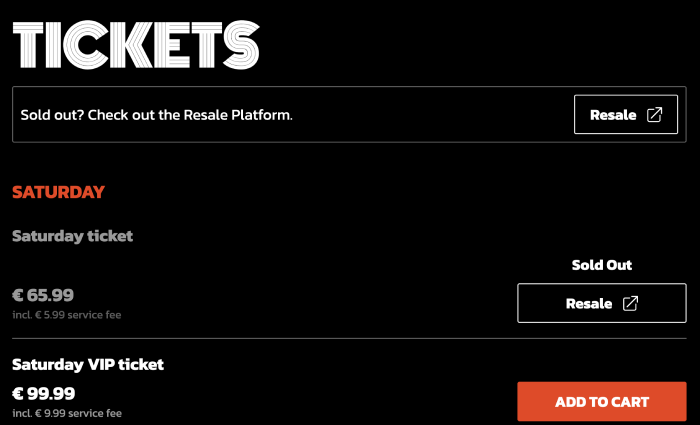
As soon as a ticket type is sold out, the Add button to put something in the shopping cart disappears. Instead, only the text Sold out is shown.
If you are using a waiting list or resale platform and a sold-out ticket type has been activated for this, you can choose to add a button that automatically links to it.
This has the following advantages:
- It is clear to fans where they can still go for sold-out tickets. This prevents them from searching for tickets via unreliable platforms.
- It is easy to show per ticket type whether a resale option is available. Tickets that are not yet sold out remain available as usual.
- It is not necessary to use banners or extra text to refer to the resale ticket options.
Adding a resale tickets button to the ticket shop
Two things are required to make the resale button visible in the primary ticket shop:
- There must be an active resale channel with tickets.
- At least one ticket type that is active for resale must be sold out.
- In the desired event, go to Sales configuration and click Edit.
- Expand the Advanced settings menu and go to Secondary sales for sold-out products.
- Here, select the resale channel; in most cases this will consist of only one choice.
a) If you are using the waiting list solution, you do not need to do anything else. The button is now automatically shown for ticket types that are sold out and available via the waiting list.b) If you are using a resale platform, you can add the URL of the platform after selecting the channel. The button is now automatically shown for ticket types that are sold out and available via the resale platform.
Optionally, you can also choose to add a reference to a resale channel at the top of the shop. This can already be activated even if no product is sold out yet. Activate this by checking Show secondary redirect option in shop header. Additionally, you can also add a description under Customizable text for secondary sales.
See below for an example of the button: